
When you sign up you give your business name and, if you have them, your company registration number and VAT number. After you pay, check your email: the way into your dashboard is a sign-in link we send to the address you signed up with, and the payment page does not sign you in itself.
You can keep signing in with emailed links, or add a password. Under Settings > Security, choose Email me a link: we send a link to your sign-in address, and opening it lets you set the password and signs you in. The link works once and expires after 15 minutes. A password is only ever set through that email, so somebody using your dashboard on a borrowed or shared device cannot set one without your inbox. Setting it signs you out everywhere else.
Once you have a password, the same place changes it, with your current password. Changing it also signs you out everywhere else, and we email you to say it changed.
A new account can send immediately. Everything below makes it send better, and the first two items matter enough that a new account shows them as a checklist on the Overview under Finish setting up, counting off as you complete them.
1. Generate an API key
Your system authenticates with an API key. Go to Settings, name the key after whatever will use it, and generate it.
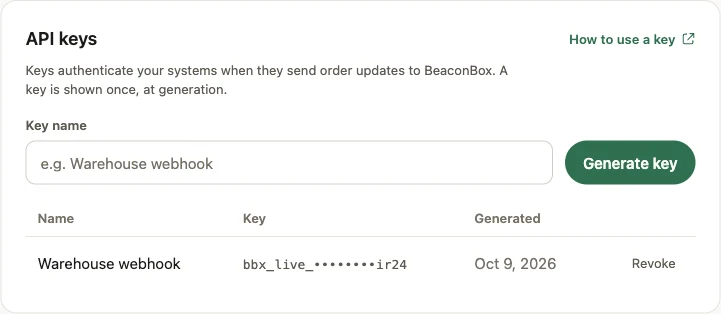
Generate one key per system rather than sharing one. A key that leaks can then be revoked on its own, without taking down every other system you have wired up.
2. Add your sending domain
Until you do this, nudges go out from a domain shared with other BeaconBox merchants. That works, and it is how every account starts.
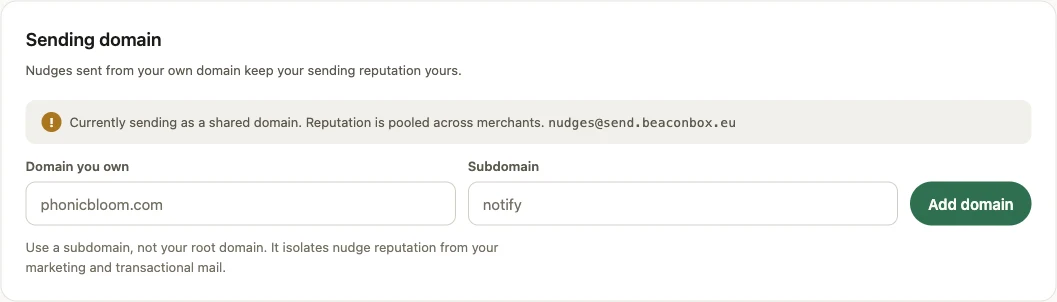
The reason to move off it is reputation. On the shared domain, your deliverability is affected by every other merchant on it, and theirs by yours. On your own domain it is yours alone.
Add a subdomain, not your root domain. Something like notify.yourshop.com. BeaconBox then shows
you the DNS records to add at your registrar, and checks them until they resolve. Verification is
usually minutes, but DNS can take a few hours to propagate, so leave it rather than retrying.
Once it verifies, a warm-up throttle starts. New sending domains that go from nothing to full volume look exactly like a compromised one to a mailbox provider, so volume is raised over the first days rather than all at once.
3. Decide on the paid channels
Email is the channel you cannot turn off, and it is covered by your plan. SMS and WhatsApp are optional, cost credits, and are off until they are turned on.
Both are switched on by BeaconBox when you ask, and switched off by you whenever you like.
- SMS: ask on the SMS screen, with the sender name your customers will see. We check the name is yours to use and switch it on. See SMS.
- WhatsApp sends over a number every merchant on the platform shares, so its reputation is shared too. See WhatsApp for how to ask.
Once a channel is on, you choose who it reaches, including only when asked: then it is used only for updates your system sends naming that channel.
4. Buy credits, if you are using them
One credit sends one message, on whichever channel sends it, and one balance covers both SMS and WhatsApp. Buy them on the Credits screen. If you are only sending email, you need none.
See Credits and payments for what they cost and how the balance moves.
Then hand over to whoever is integrating
None of the four steps above sends anything. You can send one update by hand from Send a message on the Overview, which is enough to watch the whole thing work end to end.
Sending at volume is a different job. Your updates come from your own system through the API, so the last step is somebody wiring BeaconBox into the code that already knows when an order ships.
Point them at For developers, or at the quickstart if they want to see a working call in the next five minutes.